
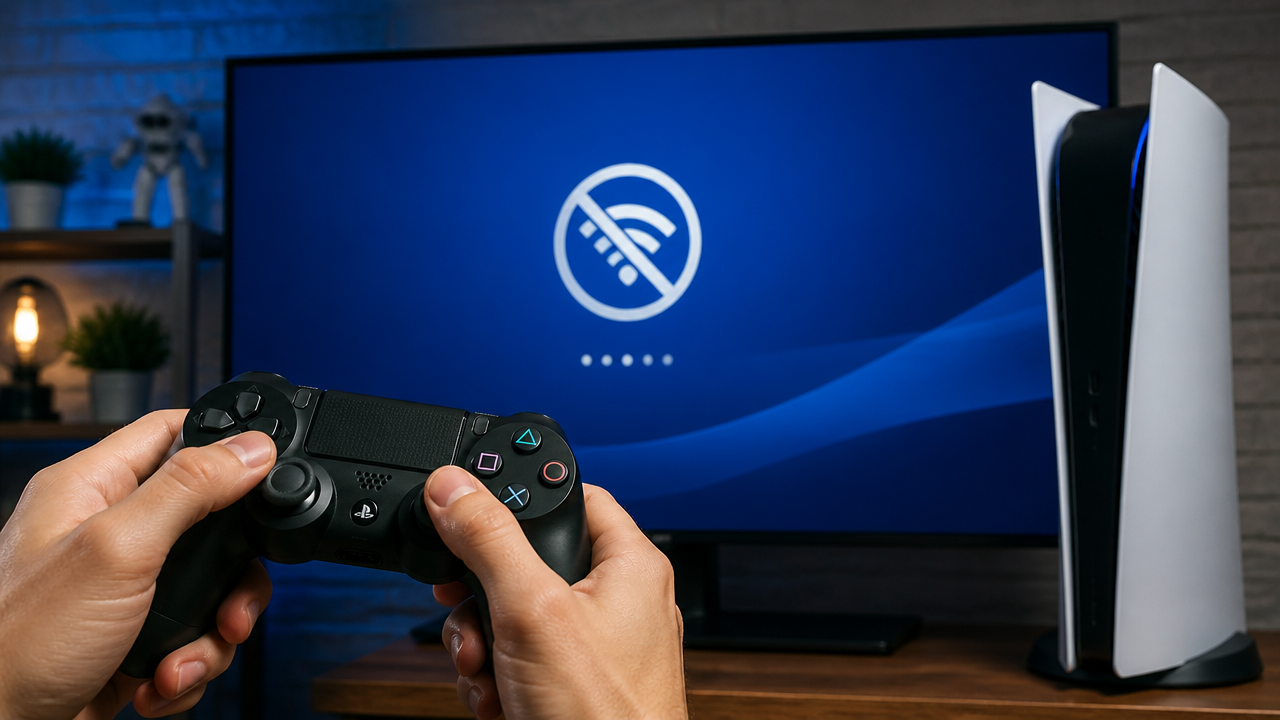
When your PlayStation console won’t connect to the network, the first instinct is to panic—especially if you’re planning a gaming session this weekend or waiting to download a title you’ve been chasing. But before you spend hours tinkering with settings or resetting your hardware, understanding whether the issue stems from PlayStation’s servers or your own setup makes all the difference. This guide walks you through checking PSN status and fixing connection problems using practical, tested methods, including what to know about PSN’s more frequent 2026 outages.
Quick Questions and Answers
Question: Why is PSN down for some users but not others? Answer: PSN outages can affect only certain regions or specific services, so some players may still sign in while others cannot. The status page shows separate issues for account management, gaming, PlayStation Store, or other services, which is why symptoms may vary by user.
Question: Can I check PSN status from my PS5 console? Answer: Yes. On PS5, go to Settings, then Network, then Connection Status, and select View PlayStation Network Status. This opens the current service-status page so you can see whether PSN is online or experiencing problems.
Question: Does the official status page always show the truth? Answer: Not always. In 2026, PSN has gone down several times while the official status page still showed all services as operational, so it can lag behind what players are actually experiencing. Cross-checking with third-party monitors and social media is a useful backup, not just an extra step.
Question: Do I need to change anything if PSN is under maintenance? Answer: Usually no. If PSN is under maintenance, the issue is on Sony’s side and you generally need to wait until services are restored. You can keep checking the status page for updates instead of changing console settings.
Key Takeaways
- Always check the official PlayStation Network Service Status page first, but don’t treat a “green” status as absolute proof nothing is wrong.
- PSN outages are often partial—one service like the Store may be down while gaming and social features work fine.
- PSN has had six separate documented outages between March and July 2026, and Sony has not officially acknowledged all of them.
- Social media and third-party monitoring sites help confirm whether the issue is regional or global, especially when the official page hasn’t caught up yet.
- Local connection problems (router, ISP, DNS) are just as common as server-side outages.
- A power cycle of your console often resolves temporary connection glitches once you’ve confirmed servers are up.
What You Need
| Item | Purpose | Notes |
|---|---|---|
| Internet-connected device (phone, tablet, or PC) | Access the status page without relying on your console | Essential if you suspect a network outage |
| Official PSN Status page bookmark | Quick reference during outages | Avoid searching—save the URL directly |
| X (Twitter) account (optional) | Monitor ‘Ask PlayStation’ for real-time updates | Faster than waiting for status page refreshes |
| Third-party outage tracker (optional) | Check user-submitted reports in real time | Useful when the official page hasn’t caught up to a live outage |
| PS4 or PS5 console settings access | Run network tests and check connection status | Helps isolate whether the issue is local or remote |
| Router or modem | Troubleshoot physical network problems | A restart often fixes temporary glitches |
Step 1: Check the Official PSN Service Status
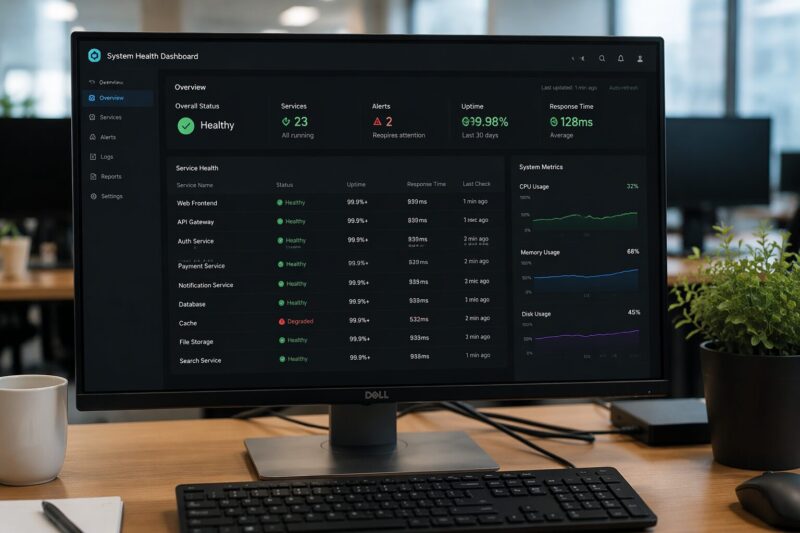
Your first move is always to visit the official source. Open status.playstation.com on any device with internet access—your phone works fine if your console isn’t connecting.
Look at the color-coded indicators for each service. Green means operational. Yellow means partial disruption. Red means currently experiencing issues. The page breaks PSN into clear categories: Account Management, Gaming and Social, PlayStation Store, and PlayStation Video.
This separation matters because you might be able to play online games while the Store is down for maintenance, or vice versa. If only one service shows red or yellow, the entire network isn’t necessarily offline—just that specific feature needs attention.
It’s worth knowing this page isn’t always immediate proof that things are fine. During a widely reported outage on 24 July 2026, coverage noted that Sony’s status page initially showed all services as operational even as thousands of players across multiple regions reported being unable to sign in, play online, or access the Store. This kind of lag has happened more than once in 2026, so treat a green status page as a strong signal, not a guarantee, especially if you’re seeing lots of complaints elsewhere.
The status page updates in real time as Sony resolves problems. Refresh every few minutes during an active outage to see when services start coming back online.
Step 2: Use Secondary Verification Tools
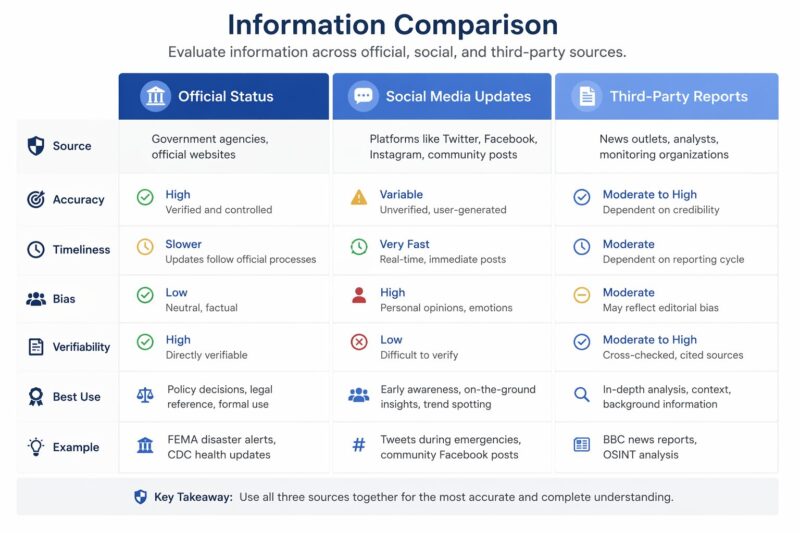
Given that the official status page can lag behind a real outage, secondary sources are an important second opinion, not just a nice-to-have. They help confirm whether an outage is hitting everywhere or just your region, and sometimes they catch a problem before Sony’s own page does.
Follow the @AskPlayStation profile on X (Twitter). During major outages, Sony posts updates there faster than anywhere else. You’ll see acknowledgments, estimated resolution times, and status summaries that give you confidence the problem is real and not just affecting your setup.
Third-party outage dashboards like Outagely, StatusGator, or DownDetector aggregate real-time user reports from across the globe. These sites track report volume by the hour. For example, one tracker logged over 200 user-submitted reports for PSN within a single 24-hour window even though Sony’s own status page had not yet acknowledged an issue. If the official status page says everything is fine but a third-party tracker shows dozens of active reports from your country, you know the issue is likely real, or at least regional, rather than just your own setup.
Cross-referencing these sources takes maybe two minutes and saves hours of unnecessary troubleshooting. It’s the fastest way to separate a real outage from a local problem, and in 2026 it has repeatedly been the fastest way to catch an outage that Sony hadn’t officially confirmed yet.
Step 3: Troubleshoot Your Local Connection
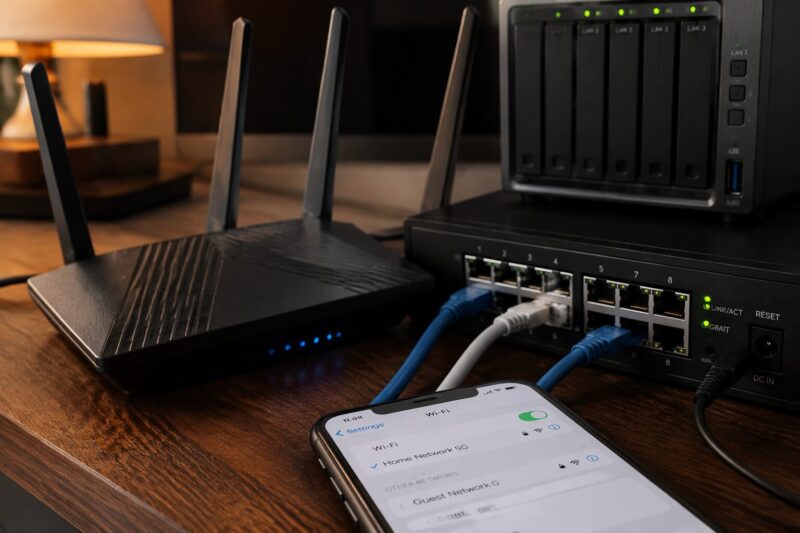
If both the PSN status page and third-party trackers show everything is operational but you still can’t connect, the problem is on your end.
Start with your router. Unplug it for 30 seconds, then plug it back in. A restart clears minor network hiccups and resolves roughly half of all local connection issues. While it reboots, check your internet on another device—phone, tablet, or laptop. If other devices lose connection too, your ISP is the culprit, not PlayStation.
Once your router is back online, test your PS4 or PS5’s network connection. Go to Settings, then Network, then Connection Status. Run the test—it pings PlayStation’s servers and reports back whether your console can reach them. This pinpoints whether the problem is your hardware, your ISP, or something between you and Sony’s data center.
If the connection test fails even though other devices work, try switching from Wi-Fi to a wired ethernet cable (or vice versa). Wireless interference, weak signal strength, or router configuration issues often affect only one connection type.
Step 4: Check Your Account Status and Credentials
Sometimes you can connect to PSN, but your account login fails. This is different from a server outage.
Go to Settings on your console and check your profile. Make sure you’re signing in with the correct email and password. If you’ve recently changed your password or enabled two-factor authentication, PSN might reject your old session.
Try signing in from another console or from a web browser on your phone by visiting the PlayStation website. If your account works elsewhere but not on your main console, the issue is device-specific—likely a corrupted cache or an old authentication token. A restart of your console usually fixes this.
If you can’t sign in anywhere, your account may have a security hold or billing issue. Check your email for messages from Sony, or visit your account settings on the PlayStation website to see whether Sony flagged anything.
Step 5: Clear DNS and Network Settings
If you’re still blocked after a restart and the status page is green, your console might be stuck trying to reach a dead DNS server or caching bad network data.
On PS5, go to Settings, then Network, then Wi-Fi or Ethernet (depending on your setup), then Advanced Settings. Select “Automatic” for both DHCP and DNS. This tells your console to request a fresh DNS address from your ISP instead of relying on old data.
Alternatively, you can manually set your DNS to Google’s public DNS (8.8.8.8 and 8.8.4.4). This bypasses your ISP’s DNS server—sometimes an ISP’s DNS causes routing failures that feel like a PSN outage.
Save the changes and try connecting again. This step takes under two minutes and solves connection timeouts without requiring a full console restart.
Step 6: Perform a Full Power Cycle and Console Reset
If standard troubleshooting hasn’t worked, a complete power cycle is next.
On PS5, hold the power button on the console itself for at least 20 seconds until it shuts down completely. Don’t just put it in rest mode—fully power it off. Wait a minute, then turn it back on. This clears the console’s entire network state and forces it to re-establish all connections from scratch.
On PS4, the process is similar: hold the power button for several seconds until the console shuts down, wait, and restart.
Once your console boots, immediately go to Settings and run a network connection test again. This often resolves connection errors that persist after a simple restart. The device’s network stack has been rebuilt from the ground up, so cached errors are gone.
If you still can’t connect after a full power cycle and the status page shows green, the issue is either your ISP, your router configuration, or a hardware failure on your console. At this point, contact your ISP first—they can confirm whether your internet is stable. If that checks out, contact PlayStation Support.
Step 7: Check for ISP or Regional Outages
A PSN outage is one thing. An ISP outage is another, but it looks identical from your console’s perspective.
Use a site like DownDetector or your ISP’s own status page to check whether your internet service provider is experiencing problems. Search your ISP name plus “outage status” to find their official status page.
If your ISP is having issues, there’s nothing you can do except wait. Your console won’t connect to PSN because it has no internet at all. Confirm this by testing a wired connection directly from your modem to your console (if you have an ethernet port available). If that still fails, your ISP is definitely the problem.
During regional outages, the PSN status page might not immediately reflect your specific area’s problem if the outage is at the ISP level rather than Sony’s data center. That’s why checking multiple sources matters—Twitter reports and third-party monitoring sites catch regional issues faster than the official status page updates.
Tips
- Bookmark the status page. Don’t search for it every time—save the URL to your phone’s home screen or browser bookmarks. In a pinage, you want instant access.
- Check the time of the outage. If you see maintenance announced on Twitter for 2 AM your time, plan your gaming around it instead of staying up hoping servers come back.
- Test from multiple devices. A phone or laptop connecting to PSN’s website proves whether the issue is device-specific or network-wide. This distinction cuts troubleshooting time in half.
- Use ethernet when possible. If you’re struggling with Wi-Fi drops, a wired connection to your router provides the most stable PSN access, especially for online gaming.
- Know your router’s IP address. If you need to troubleshoot network settings, accessing your router’s admin panel (usually 192.168.1.1 in a browser) lets you monitor connection stability and restart from there if needed.
- Keep a backup internet method. A mobile hotspot from your phone can test whether your home ISP is the problem. Tether your console to your phone’s hotspot temporarily and see if PSN connects.
- Screenshot the status page during outages. If you need to contact PlayStation Support, a screenshot shows when the problem started and what services were affected.
- Don’t expect compensation by default. As of 2026, Sony has not offered automatic credits or extended PS Plus time for most outages, so don’t wait on that before troubleshooting.
FAQ
Q: Are PSN login problems caused by server outages?
They can be. If account management or sign-in services are marked down on the status page, you won’t be able to log in even if your internet connection works fine. If PSN status shows everything operational, the problem is more likely your network, account credentials, or console settings rather than Sony’s servers, though the status page has occasionally been slow to reflect real outages in 2026.
Q: How do I know if PlayStation Network is offline right now?
Check the official PSN status page or use your PS5’s View PlayStation Network Status option (Settings > Network > Connection Status). If the page shows service issues, red or yellow indicators, or a disruption message, PSN is having problems. Green indicators usually mean the issue is local to your setup, but if you’re seeing widespread complaints on social media or a spike on third-party trackers, it’s worth waiting and checking again rather than assuming the green status is final.
Q: Does restarting PS5 fix PlayStation Network connection issues?
A restart can help with temporary connection glitches, but it won’t fix a PSN-wide outage. Restarting is most useful after confirming servers are up, because it clears minor network or sign-in problems on your console. If PSN itself is down, restarting won’t restore services—you need to wait for Sony’s fix.
Q: Will changing DNS fix PSN if the servers are down?
No. DNS changes may help if your local connection is misrouting traffic, but they can’t restore PSN services during an outage. If the status page shows PSN is down, you need to wait for Sony to resolve it. DNS changes are only useful when servers are up but your console can’t reach them.
Q: When should I check my internet instead of PSN status?
Check your internet first if the PSN status page says everything is up and running. In that case, the problem is more likely with your Wi-Fi, router, modem, account sign-in, or console network settings rather than Sony’s servers. Test internet on another device to confirm.
Q: Is the PlayStation Store affected when PSN goes down?
It can be. The PSN status page separates services, and the PlayStation Store may be unavailable even if other parts of PSN work. If store access is down, you can’t browse, purchase, or download content, but you might still play games already installed on your console.
Q: Which PSN services are checked on the status page?
The status page typically shows Account Management, Gaming and Social features, and the PlayStation Store. Some status checks also note related services like PlayStation Direct or PlayStation Video. That breakdown helps you tell whether an outage is general or limited to one feature you’re trying to use.
Q: How often has PSN gone down in 2026?
PSN has had at least six separate documented outages between March and July 2026, roughly one every three weeks. Sony has not officially acknowledged all of them, which is part of why checking multiple sources rather than relying on the status page alone has become more useful this year.
Q: Does Sony compensate players for PSN outages?
Not as a general rule in 2026. Sony has not been offering automatic refunds, credits, or extended PlayStation Plus time for most outages, so don’t count on compensation and instead focus on troubleshooting or simply waiting out server-side issues.
My Experience With PS Network Down? Here Is How to Check Status and Fix It
I’ve lost count of how many times I’ve stared at a “Can’t connect to PlayStation Network” error at 9 PM on a Friday, certain the entire system was down—only to discover my router had silently dropped offline. That one lookup at status.playstation.com would have saved me 20 minutes of pointless troubleshooting.
The real lesson I learned is that most PSN “outages” aren’t outages at all. They’re local failures—a forgotten password after a recent change, a router that needed a restart, or an ISP hiccup that looked like a Sony problem. The official status page exposed the truth within seconds, most of the time.
What surprised me most was how often partial outages happen, and more recently, how often the status page itself lags behind. I once spent an hour trying to download a game, assuming the entire network was down. Turns out the PlayStation Store was under maintenance while gaming and social features worked fine. That’s when I realized checking individual service status is non-negotiable—never assume the whole system is dead if one feature fails, and never assume everything is fine just because the page says so.
The verification step matters too. I’ve learned to cross-check Twitter and third-party dashboards when something feels off, especially late at night. Once, a regional ISP outage made it look like a PSN problem across my whole city—the status page didn’t catch it, but Twitter reports from dozens of local players did. In 2026, I’ve also seen the reverse happen: a real, widespread PSN outage while the status page still showed green.
Have you ever caught a router restart solving what you thought was a PSN outage, or found yourself stuck in a partial service failure that wasn’t immediately obvious?
Conclusion
PlayStation Network outages are frustrating, but they’re almost always survivable with a clear troubleshooting order. Start with the official status page, but don’t treat it as the final word, since 2026 has shown it can lag behind real outages. Verify with social media and third-party monitors if you’re unsure. Only after confirming PSN is actually down should you dive into local network troubleshooting. A router restart solves half these problems. A full power cycle solves most of the rest. Everything else points to your ISP, your account, or a rare hardware issue worth escalating to PlayStation Support.
The key is speed: a few minutes of status checks across multiple sources beats an hour of random console resets. Bookmark the status page, follow Ask PlayStation on X, and keep a third-party tracker in your back pocket, and you’ll rarely waste another evening chasing a problem that’s already been solved, or flagged, somewhere online.
Latest Updates
As of 24 July 2026, PSN is again facing reported service issues, with players across multiple regions describing login failures, matchmaking and connection problems, and disruptions to the PlayStation Store, even as Sony’s own status page initially showed all services as operational. This follows a pattern seen throughout the year: PSN has recorded at least six separate documented outages since March 2026, occurring roughly every three weeks, and Sony has not officially acknowledged all of them. Sony has not been offering automatic compensation, such as refunds or extended PlayStation Plus time, for most of these incidents. Third-party monitoring has expanded in response, with multiple dashboard services now tracking PSN health in real time and logging user reports even when the official page hasn’t caught up, which is useful if you want a second opinion during peak outage traffic.
References
- PlayStation. (n.d.). PlayStation Network service status. PlayStation. https://status.playstation.com/
- PlayStation. (n.d.). Connectivity support. PlayStation Support. https://www.playstation.com/en-us/support/connectivity/
- Insider Gaming. (2024). Is PlayStation down? How to check PlayStation Network server status. Insider Gaming. https://insider-gaming.com/is-playstation-network-down-guide-server-status/
- 9meters. (n.d.). How to check PSN service status: Guide for PlayStation outages. 9meters. https://9meters.com/entertainment/games/how-to-check-psn-service-status
- Outagely. (n.d.). PlayStation Network status and outage information. Outagely. https://www.outagely.com/status/playstation-network/
- NordVPN. (n.d.). Is the PlayStation Network (PSN) down? Status and problems. NordVPN. https://nordvpn.com/is-it-down/playstation-network/
- VeePN. (n.d.). Is PSN down right now? Live status & outage check. VeePN. https://veepn.com/is-it-down/psn/
- Sportskeeda. (2026, July 24). Is PlayStation Network down right now? Outage status explored. Sportskeeda. https://tech.sportskeeda.com/gaming-news/news-is-playstation-network-right-now-outage-status-explored-july-24-2026
- StatusGator. (2026, July 24). PlayStation status. StatusGator. https://statusgator.com/services/playstation
- Tech Insider. (2026, July). PSN outage 2026: Down 6 times in 4 months, Sony silent. Tech Insider. https://tech-insider.org/psn-outages-2026/

A Teacher with 5 years of experience. Our Expertise, is reliable to meet your full Academic development needs . Worked on many crafts and construction projects offering services from design to development to deployment over the years. You will find many of my works in my business portfolio on request.