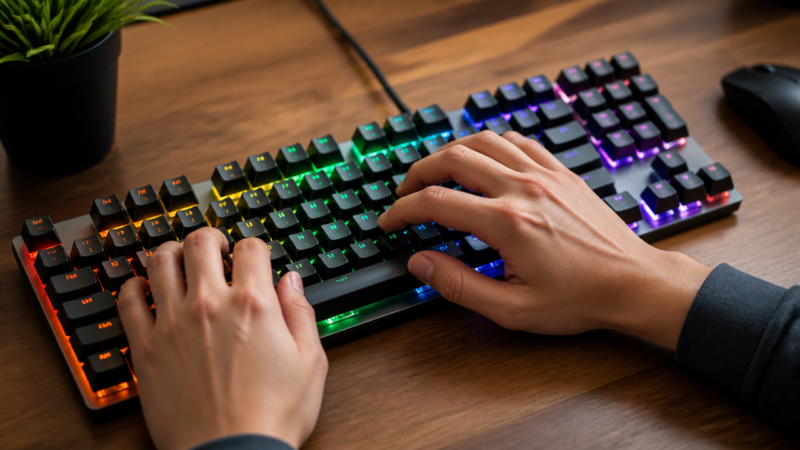
What makes every key in keyboard sends such a reliable signal, even when layouts change between QWERTY and AZERTY? Every key in keyboard sends scancodes in the background, while your apps see the translated character or action. That one hidden step explains why key presses feel consistent, why “wrong” letters appear sometimes, and why games can care about physical placement. Whether you’re typing for work, coding hotkeys, or playing a weekend match, every key in keyboard sends drives the whole input chain—scancode to keycode to message. Let’s make the mechanics click.
Quick Questions and Answers
Question: What does every key press on keyboard send first?
Answer: Every key press sends a scancode to the operating system, not the character itself. This code identifies the key’s position (row and column) rather than its engraved label. The operating system then converts this scancode into a character using the keyboard mapping table.
Question: Why does my keyboard send a code instead of letter?
Answer: The keyboard sends a position-based scancode because it only knows which physical switch is pressed, not the desired character. The operating system determines the actual character (like ‘A’ or ‘@’) based on the current keyboard layout and active settings like Caps Lock.
Question: Can I change what code every key sends to computer?
Answer: Yes, you can modify key codes using keyboard mapping software or by changing the physical layout in your operating system settings. This reassigns which scancode maps to which character, though the hardware still sends the original position code to the OS.
Key Takeaways
Every key in keyboard sends starts with a scancode: a hardware-level identifier for the physical key switch and when it was pressed or released.
Your operating system uses keyboard layout rules to turn that scancode into the logical symbol your app expects.
Scancodes are “where” the key lives on the keyboard. Virtual key codes and characters are “what” that key means in software under your current layout and modifiers.
Every Key in Keyboard Sends: Understanding the Mechanics of Input
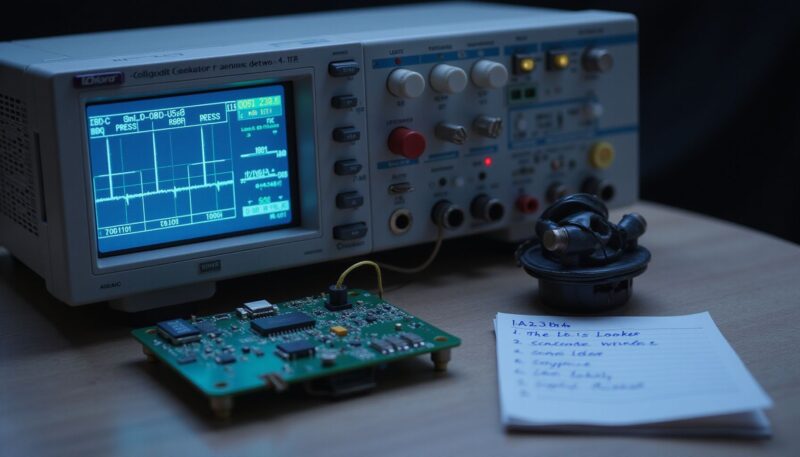
When you press a key, your computer does not instantly “receive the letter you see.” Instead, the keyboard controller generates a hardware signal that identifies which physical key changed state. That signal is typically a scancode, a device-dependent value that names a specific physical key position. According to Scancode, scancodes (also called scan codes) uniquely identify keyboard keys, and keyboards can send other forms of state updates too.
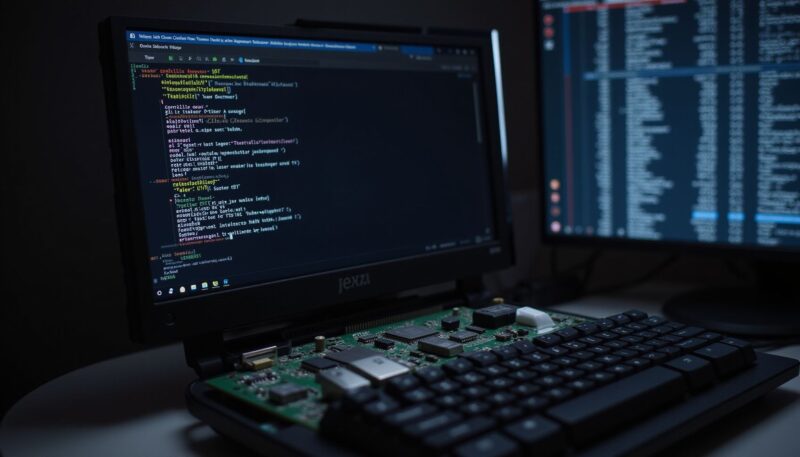
From there, the operating system acts like a translator. The keyboard layout engine takes the raw scancode and turns it into a keyboard message for the right app window, using mapping tables that account for your chosen layout and modifier keys. Microsoft describes this pipeline in Windows terms: a keyboard driver receives scan codes, translates them through the keyboard layout, and posts messages to applications. See Windows keyboard input and translation.
So when people say “every key in keyboard sends,” they’re pointing at the real truth: your computer’s first contact with input is a physical-key identifier (scancode), not the printed character on the keycap.
The Role of the Scancode in Hardware Identification
A scancode is a number (or bit pattern) the keyboard firmware creates to uniquely identify a key press or release. Wikipedia frames it as a device-dependent identifier used by a keyboard protocol to tell the computer which physical key changed state. The details vary by protocol and implementation, but the job stays the same: “Which key switch did you just touch?”
This matters because some keys serve multiple roles that look identical on the surface. Take Shift and Ctrl: many boards have more than one Shift or Ctrl key. Scancodes help the system distinguish left Shift from right Shift because the hardware reports the specific physical coordinate of the switch. A scancode identifies that coordinate even when the keycaps share the same label style or when modifiers are combined with other keys.
Scancode sets add another layer that explains weird “codes” you might see in debugging tools. Hardware and firmware can use different scancode sets internally. A Linux-oriented scancode reference explains that key press and key release produce scancodes, and that there are multiple scancode sets; the firmware may translate one set into what the OS expects. In practice, the existence of scancode sets is why two keyboards can look “different” to low-level tools while your operating system still produces the right characters.
How Data Travels from Firmware to Operating System
Every keystroke usually produces at least two moments of data: key down (press) and key up (release). Microsoft’s Windows input overview explicitly states that the keyboard generates two scan codes when a user types a key—one when pressing and one when releasing. If you’ve ever wondered why key repeat behavior behaves the way it does, this press/release distinction is a major reason the system can tell “held down” from “pressed once.”
The Linux scancode reference adds color by noting that each key press and each key release can produce multiple scancodes depending on protocol behavior, timing, and scancode set translation. Even then, the overall pattern is stable: the system receives signals about state changes.
Once the keyboard device driver receives these scan codes, the OS keyboard layout layer converts them into messages and key events that applications understand. Microsoft describes that the driver receives scan codes, sends them to the keyboard layout, and then posts the translated messages to your application windows. In other words, your app doesn’t typically see “raw coordinates” directly; it sees a higher-level input meaning derived from your current layout and settings.
Scancodes Versus Virtual Key Codes: Physical vs. Logical Input
Here’s the essential split: scancodes point to the physical key. Virtual key codes (and characters) represent the logical outcome based on your software settings. SDL discussions often frame this contrast in terms of “physical key detection” versus “symbol mapping,” which is a useful way to reason about the difference. Even without using scancode math, your everyday experience shows the gap: press the same physical key position and you can get different characters by changing layout.
So why does every key in keyboard sends not immediately equal the printed character? Because the keyboard hardware doesn’t know your selected layout choices. It knows which switch moved. The OS decides whether that switch maps to A, a, @, or something else, based on the keyboard mapping table and active modifiers. The Quick Questions section above captures this directly: the keyboard sends position-based scancodes, and the operating system determines the actual character using layout and settings.
This also explains development and gaming behavior. Many games use physical scancode-like logic for key bindings so you can keep muscle memory even if the printed labels don’t match your current layout. Handmade Network’s discussion on handling keys based on keyboard position versus virtual key codes (for example when switching AZERTY to QWERTY) illustrates that a lot of input problems come from mixing physical intent with logical labels.
The Decoding Pipeline: From Switch to Application
Once scancodes enter the system, translation can feel magical—until you trace it. The OS first needs to map hardware identifiers to a valid internal representation, then translate that into application-visible events. QMK documentation points out that scancodes map to keycode behavior via mapping layers (and that without mapping, the OS may not receive a valid interpretation). In a full system, this mapping often involves keyboard hardware databases and layout configuration.
On Linux, the idea of a hardware database such as 60-keyboard.hwdb appears in the QMK documentation. That kind of file helps define how scancode values become meaningful internal key identifiers so your system doesn’t just receive a number and shrug. On Windows, the pipeline described by Microsoft uses a keyboard layout to translate scan codes into messages for app windows. Either way, the architecture is the same: hardware emits coordinates; system maps coordinates to meaning.
Scripting tools and automation layers can sit in the middle. AutoHotkey discussions often explain the split between scan codes and virtual key codes so you can choose which “level” your script reacts to. When you bind to scancodes, you target the physical switch identity. When you bind to virtual key codes, you target the logical symbol under your current layout and modifier state. If you’ve ever built a hotkey that broke after changing keyboard language, you’ve felt this pipeline difference.
For a real-world analogy, scancodes are the street address. Virtual key codes are the language translation of what you read at that address. Change the language translation and the address stays the same, yet your words change.
Method / Level
What it identifies
Does it depend on layout?
Common use
Example symptom when it mismatches
Scancode
Physical key coordinate (press/release)
No
Low-level key detection, physical bindings
Hotkey triggers a different key after layout change if you used virtual keys instead
Virtual key code
Logical key identity (platform/OS mapping)
Yes
Standard app shortcuts
Shortcut letter differs across keyboard languages
Character code (text input)
Final character produced (like A, @, あ)
Yes
Typing text, input fields
You see “wrong characters” while keys still register
Raw input / low-level hooks
Unprocessed events before app mapping
Sometimes (you receive raw identifiers)
Debugging, games, custom remappers
One key stops working because the handler expects raw vs mapped events
Common Troubleshooting and Practical Applications
Keyboards “sending codes” can sound abstract, but it shows up as real bugs: wrong letters, broken shortcuts, or input that seems inconsistent across apps. Most of that comes down to whether a tool you use listens at the scancode level (physical) or the virtual key/character level (logical).
A classic troubleshooting path is to check your keyboard layout and language settings. If your OS maps scancodes differently under a new layout, the same physical key will produce a different character event. The Quick Questions section already gives the core reason: the keyboard sends physical position codes, while the OS decides the character using the current layout and modifier states like Caps Lock.
When keys fail to register in software, raw input debugging can help. If the keyboard hardware still emits press/release scancodes but your application fails to interpret them, you likely have a translation mismatch. That situation shows up in tools that distinguish between “key pressed” events and “text input” events. Games also often need to decide whether they care about physical placement or label-based meaning. If you bind commands through a layout-sensitive layer, switching between QWERTY and AZERTY can scramble your muscle memory.
For developers, this becomes a design decision. You can treat input as physical events (scancode-like) or as logical events (keycodes/characters). SDL-style discussions often frame this choice as different approaches to detecting the key that was pressed. Pick physical when your user expectation is “the key I meant,” even if the printed glyph changes. Pick logical when the expectation is “the character the user sees.”
Key Takeaways for Users and Developers
Every key in keyboard sends a scancode first, which identifies “where” the physical switch is on the keyboard. That’s the stable hardware truth. Your operating system then converts that scancode into the logical layer your software expects, which is why “what you get” can change with layout choices like QWERTY versus AZERTY.
Keyboards typically generate separate signals for the press and the release. That press/release pair gives the OS enough information to handle key combinations, detect holds, and avoid repeating characters when a key is simply released.
Customizing input mostly means touching the translation layer. When you remap keys, change a layout, or use automation tools, you are changing how scancodes map to virtual key codes and characters—not changing what the hardware initially emits. The Quick Questions section states this directly: you can modify key codes via mapping software or OS layout settings, while the hardware still sends the original position code to the OS.
One more practical note: if you debug at the wrong layer, you’ll chase ghosts. A scancode-based hotkey might “work” while a character-based one fails, or vice versa, because they sit in different parts of the pipeline.
In Practice
Let’s make it feel concrete. Press A on a physical keyboard: the keyboard hardware reports the physical coordinate for that key switch (a scancode). Then your OS checks your keyboard mapping and modifiers. If you’re in a QWERTY layout, it will likely translate that coordinate into an A character event for text input, and an A-oriented logical key event for shortcuts. If you switch to a different layout, the same coordinate still gets the scancode, but the OS mapping can yield a different character outcome.
That’s also why “every key in keyboard sends” matters for accessibility and automation. Accessibility tools and remappers often need deterministic key identity, so they may bind to physical key identity or treat modifier keys carefully to handle left versus right control keys. If a remapping tool relies on layout-dependent virtual key codes, it can break when you swap layouts mid-session.
As a systems habit, I treat troubleshooting like tracing signals along a pipeline. I ask: did the key physically press register at all, or did it register but translate wrong? That question narrows the fix fast, especially when you’re dealing with shortcut conflicts or a specific key that “stops working” only in one app.
When you need a sanity check, you can compare how different input layers behave in your environment. Microsoft’s explanation of scan codes reaching the keyboard layout engine is basically the blueprint for interpreting what you see in logs and what you see on screen. And if you’re using a tool that exposes scancodes directly, remember you’re looking at the physical identity layer, not the final character layer.
My Experience With every key in keyboard sends
I first got tangled in this topic while testing a hotkey setup for a game and a text tool on the same machine. The shortcut felt random until I realized I was binding at the wrong “layer”: one binding expected virtual key codes (layout-sensitive), while the other matched scancodes (physical). Then I flipped keyboard layout and, suddenly, the same muscle memory started producing the wrong action. It wasn’t the keyboard “forgetting” anything. It was me assuming scancode-equivalent behavior would match label-equivalent behavior.
My favorite expert-level insight is this: press/release signals are what make combinations and repeats behave predictably, so any debugging that ignores the release event can look like “the key got stuck,” even when it didn’t. I’ve seen people chase Caps Lock when the real issue was a mismatched interpretation of modifier state across the translation layer.
For what it’s worth, I now treat the OS keyboard layout engine as the translator and my app as the listener. If my app listens for the wrong level, the same scancode can still produce a different outcome than I expect.
What layer do you think your last “wrong key” problem came from: hardware identity, layout translation, or app-specific handling?
FAQ
Q: Do all keyboards send the same codes for every key?
No, different keyboards may send different scancode values for the same physical key depending on the manufacturer and protocol (USB HID, etc.). However, the operating system uses a standard mapping table to translate these varying codes into consistent character output.
Q: Are scancodes sent when I release a key as well?
Yes, releasing a key also sends a scancode to inform the system the key is no longer pressed. This release signal is crucial for detecting key combinations and preventing character repetition when a key is held down too long.
Q: How does keyboard driver convert code to letter?
The keyboard driver uses a scancode-to-character conversion table (keyboard mapping table) to translate the binary scancode into a standard character code like ASCII or Unicode. This table accounts for the current layout, modifiers (Shift, Ctrl), and system state.
Q: When does keyboard controller send signal to computer?
The keyboard controller sends the signal immediately after the switch completes the circuit and the key’s unique coordinate is identified in the internal matrix. This happens in milliseconds, sending the scan code pattern to the computer before any character appears on screen.
Q: Is the letter A sent as a different code than B?
Yes, the letter A and B are sent as completely different scan codes because each physical key has a unique internal reference number. The computer receives these distinct binary patterns and then translates them into ‘A’ or ‘B’ using the mapping table.
Q: What happens if I press a key missing in layout?
If a character exists in the current layout, it is always sent as the associated virtual keycode. If the character doesn’t exist in the layout, it may be sent as the character itself or its corresponding virtual keycode, depending on the sending mode used.
Q: Which code is sent when multiple keys are pressed?
When multiple keys are pressed, the keyboard controller sends individual scancodes for each key simultaneously or in rapid sequence, depending on the keyboard’s capability. The operating system then combines these codes to determine the intended character or action, such as Shift+A.
Conclusion
Every key in keyboard sends a scancode first because hardware needs a fast, physical way to report which switch changed state. Your OS then turns that scancode into the logical keycode and character your apps can use. Once you hold onto that separation—physical identifier versus layout-dependent meaning—bugs stop feeling random, and “wrong letters” start making sense.
If you want a simple way to remember it: scancode tells you where the key is. The keyboard layout tells you what that key means today.
A Teacher with 5 years of experience. Our Expertise, is reliable to meet your full Academic development needs . Worked on many crafts and construction projects offering services from design to development to deployment over the years. You will find many of my works in my business portfolio on request.