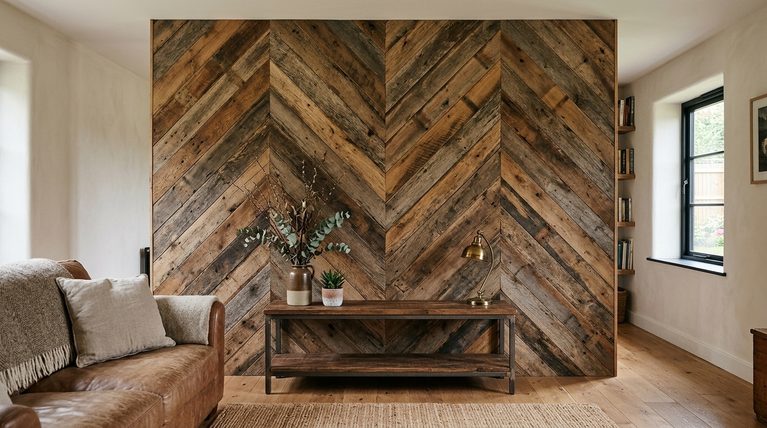

Your laptop background is the first thing you see every day. A good one makes your screen feel calm, cute, or cozy. A messy one makes icons hard to find. This list gives you 13 aesthetic backgrounds for laptop screens, from soft pastel gradients to dark academia libraries. Each idea shows the mood, the colors, and the words to type into a free photo site. You will also learn what size to pick and how to set the image on Windows or a Mac.
Quick Answer
Soft pastel gradients, minimal beige textures, and starry night skies are the easiest aesthetic backgrounds for laptop screens, because their calm colors keep icons readable. Pick an image that matches your screen’s resolution, then set it in Personalization on Windows or Wallpaper on a Mac.
| Laptop Background Basics | Answer |
| Most common screen shape | 16:9 |
| Other screen shape | 16:10 on some laptops |
| Common resolution | 1920×1080 |
| Budget laptop resolution | 1366×768 |
| Where to set it on Windows | Personalization, Background |
| Where to set it on a Mac | System Settings, Wallpaper |
1. Soft Pastel Gradient
A pastel gradient blends two or three soft colors, like pink into lavender or peach into baby blue. It is the tidiest style here, since there are no shapes to fight with your icons.
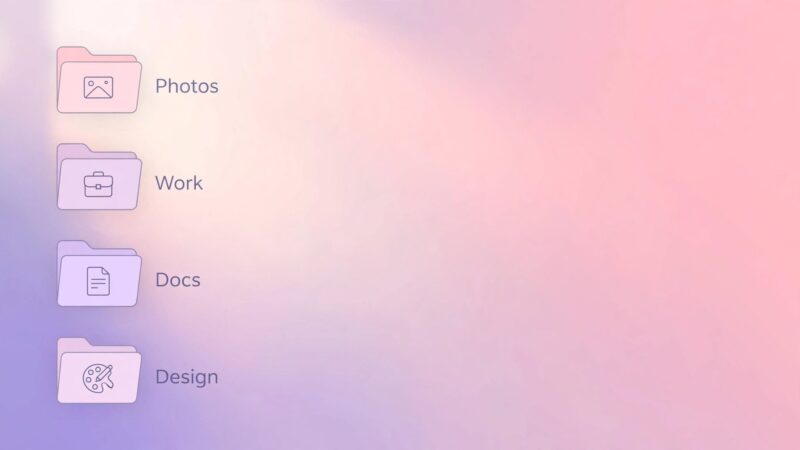
Search for “pastel gradient wallpaper” or “soft mesh gradient.” Pick one where the colors shift slowly from corner to corner. Dark text and dark icons read best on light pastels.
2. Dark Academia Library
Think old books, brown leather, warm lamp light, and a slightly moody feel. Dark academia suits students, writers, and anyone who wants a quiet workspace.

Search for “dark library bookshelves” or “candlelit study desk.” Choose a photo with darker edges so white desktop icons stay clear. Warm browns and deep greens work well together.
3. Minimal Beige Neutral
Sand, cream, and oat colors on a plain or softly textured surface. It looks clean in screenshots and screen recordings, which helps if you make tutorials or blog images.
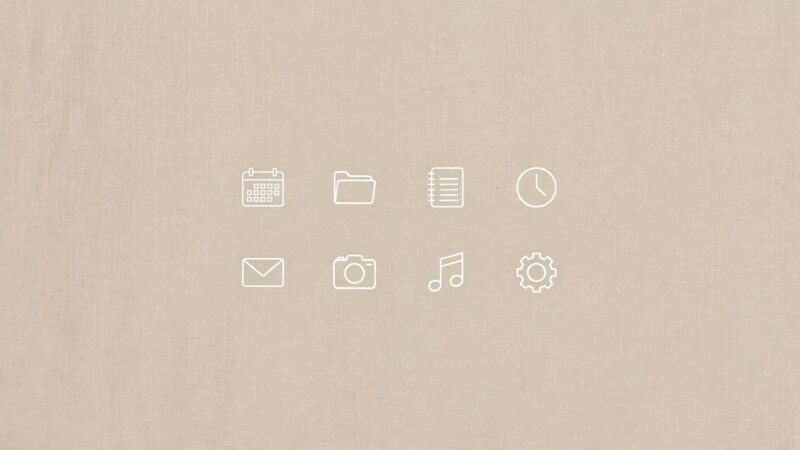
Search for “beige aesthetic background” or “neutral paper texture.” Keep it plain so folders and files stay easy to spot.
4. Cottagecore Wildflower Meadow
Daisies, poppies, and tall grass in soft afternoon light. This one feels gentle and slow. Muted greens and cream keep it soft instead of loud.

Search for “wildflower meadow” or “cottagecore field.” Choose a photo with the flowers along the bottom and open sky above, so your icons sit on calm space.
5. Starry Night Sky

Deep navy or black with tiny white stars, sometimes with a faint purple glow. It pairs well with dark mode and late night work.
Search for “night sky stars” or “milky way wallpaper.” White icons pop on this background. Skip images with a bright moon in the middle, since it can sit right under your icons.
6. Cozy Coffee Shop Window
Rain on glass, a warm lamp, and a blurry street outside. It gives you the lofi feeling that many people love while studying. The soft blur behind the window keeps the scene calm.

Search for “rainy window cafe” or “cozy cafe aesthetic.” An amber glow looks best with dark mode turned on.
7. Golden Hour Sunset
Orange, pink, and purple sky just after the sun drops. It makes a desktop feel warm and open. A low horizon line with smooth sky above works best.
Search for “golden hour sky” or “pink sunset clouds.” A very bright sunset can wash out white icon text, so pick one with a slightly darker band at the top.
8. Retro Y2K Holographic Swirl

Chrome, silver, hot pink, and icy blue, twisted into liquid shapes. It is bold and playful, and it looks great in a screenshot.
Search for “holographic gradient” or “y2k chrome wallpaper.” This style is busy, so tuck your files into one folder to keep the screen tidy.
9. Ocean Wave Watercolor

Teal, sea foam, and white brush strokes that look like waves painted on paper. The layered blues feel calm and fresh.
Search for “watercolor ocean wallpaper” or “abstract wave painting.” Windows puts icons on the left by default and a Mac puts them on the right, so pick a piece with a lighter patch on that side.
10. Botanical Line Art Leaves
Thin green leaf lines on a cream base. It looks like a page from a nice notebook. This style suits bloggers who want a soft, tidy desktop.
Search for “botanical line art background” or “leaf outline wallpaper.” Choose faint lines so text labels stay clear.
11. Dreamy Cloud Sky
Puffy white clouds on a pale blue sky, sometimes tinted pink. It is bright, airy, and simple.
Search for “aesthetic clouds wallpaper” or “pastel sky.” Dark icons read best here. If you work at night, pick a version with a deeper blue.
12. Marble and Gold Texture
White or gray marble with thin gold veins. It looks clean and a little fancy.
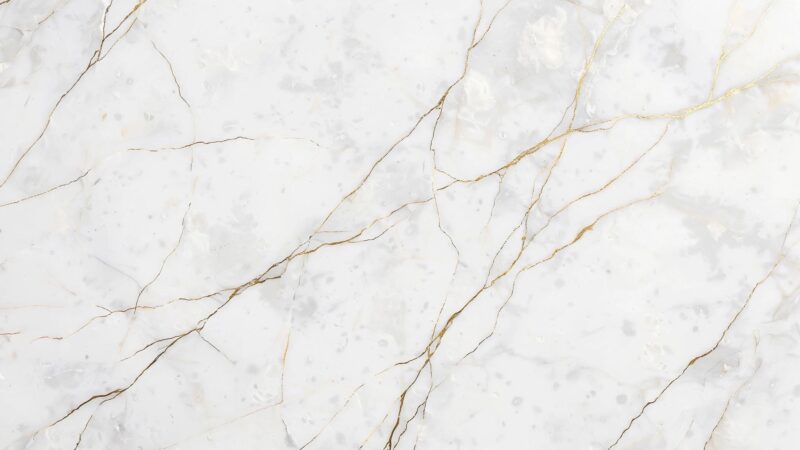
Search for “white marble gold texture.” Heavy veining across the whole screen can cut through icon labels, so choose a mostly white piece.
13. Cherry Blossom Branches
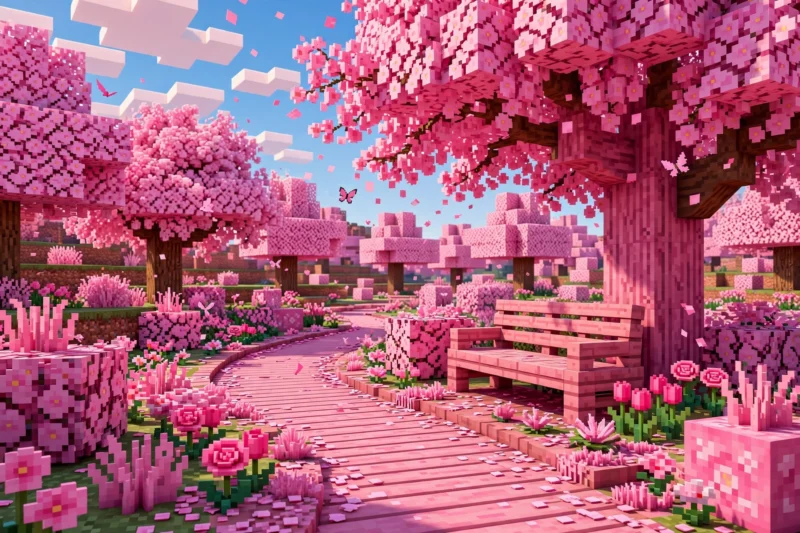
Pink blossoms hanging across one corner, with a pale sky or soft blur behind them. Soft pinks and whites go well with a light Windows or Mac theme.

Search for “cherry blossom branch” or “sakura wallpaper.” Place the branch in the top corner and leave the empty space near your icons.
How Do These Aesthetic Backgrounds Compare?
Pastel gradients, beige neutrals, and starry skies keep icons the easiest to read, while Y2K swirls are the busiest. Use the table to match a style to your mood and your desktop.
| Style | Mood | Main Colors | Icons |
| Soft Pastel Gradient | Calm | Pink, lavender, peach | Easy to read |
| Dark Academia Library | Moody | Brown, deep green, amber | Easy to read |
| Minimal Beige Neutral | Clean | Sand, cream, oat | Easy to read |
| Cottagecore Wildflower Meadow | Gentle | Green, cream, soft yellow | Depends on photo |
| Starry Night Sky | Dreamy | Navy, black, violet | Easy to read |
| Cozy Coffee Shop Window | Cozy | Amber, brown, gray | Depends on photo |
| Golden Hour Sunset | Warm | Orange, pink, purple | Depends on photo |
| Retro Y2K Holographic Swirl | Playful | Silver, pink, icy blue | Busy |
| Ocean Wave Watercolor | Fresh | Teal, sea foam, white | Depends on photo |
| Botanical Line Art Leaves | Soft | Cream, sage green | Easy to read |
| Dreamy Cloud Sky | Airy | Sky blue, white, blush | Easy to read |
| Marble and Gold Texture | Elegant | White, gray, gold | Depends on photo |
| Cherry Blossom Branches | Sweet | Pink, white, pale blue | Depends on photo |
What Size Should a Laptop Background Be?
Pick an image that matches your screen’s resolution and shape. According to Minco Connect, 1920×1080 is the most common resolution on desktops and laptops, and it has a 16:9 shape. Budget laptops often use 1366×768, which is also 16:9, so a Full HD image scales down cleanly.
Some laptops use a taller 16:10 screen, such as 1920×1200. Matching the shape of your screen keeps the image from stretching. ElevenForum notes that an image the same size as your display gives the best looking results. On a Mac, the Wallpaper settings let you pick Fill Screen, Fit to Screen, Stretch to Fill Screen, Center, or Tile, according to Apple. Fill Screen crops the edges instead of squashing the picture.
Higher resolutions pack in far more pixels, so a small image can look soft on a sharp screen. The chart shows how fast the pixel count grows.
Pixels on screen by resolution (in millions)
How Do You Set a Laptop Background Step by Step?
Open Personalization on Windows or Wallpaper in System Settings on a Mac, then choose your image. Microsoft says these steps work on Windows 11 and Windows 10, though Windows 10 lost free updates on October 14, 2025.
- Save the image. Download your background and save it in your Pictures folder so it is easy to find.
- Open Windows settings. On Windows, right-click an empty spot on the desktop and choose Personalize, or press the Windows key and I, then select Personalization.
- Pick your picture. Select Background, choose Picture, then use Browse photos to pick your file.
- Open Mac settings. On a Mac, open the Apple menu, choose System Settings, then click Wallpaper.
- Add your photo. Click Add Photo and choose your file, or drag the image onto the thumbnail at the top of Wallpaper settings.
- Choose the fit. Pick how the image fills the screen. On a Mac, Fill Screen crops the edges instead of stretching the picture.
Windows also offers Solid color, Slideshow, and Windows Spotlight in the same Background menu. A slideshow rotates a folder of images, so you can keep several aesthetic backgrounds and swap them automatically. A Mac can shuffle a folder too, and you choose how often. On a Mac you can also Control-click a picture in your browser and choose Use Image as Desktop Picture.
How Do You Keep Desktop Icons Readable on a Busy Background?
Keep your icons on a calm part of the image, or tuck them into folders. Busy styles like Y2K swirls and heavy marble veins compete with icon labels, so a tidy desktop matters more with them. Windows lines icons up on the left and a Mac starts on the right, so keep that side of the picture quiet.
Pair dark backgrounds with white icon text, and light pastels with dark text. If a photo is almost perfect but too busy, crop it so the calm part sits where your icons live. Test the background for a day before you commit. Open a browser window and a folder over it to see how your everyday screen looks.
Where Can You Find Free Aesthetic Laptop Backgrounds?
Unsplash and Pexels are the two best free sources. Unsplash lets you download and use its images for free, for commercial and personal projects, without asking permission. It does not let you sell images without significant changes. Pexels photos are free too, and you do not need to credit the photographer, though some sponsored photos are not free to use. Type the search words from each idea above into either site, and pick the largest download size offered.
Frequently Asked Questions
What resolution should I use for a laptop background?
Use the same resolution as your screen, which is 1920×1080 on most laptops. An image that matches your display gives the sharpest result.
How do I change my laptop background?
On Windows, right-click the desktop, choose Personalize, then Background. On a Mac, open System Settings and click Wallpaper.
Are Unsplash photos free to use as wallpaper?
Yes, Unsplash images are free for personal and commercial use with no permission needed. You cannot sell them without significant changes.
Why does my wallpaper look stretched or blurry?
The image shape or size probably does not match your screen. On a Mac, choose Fill Screen, or pick a larger image with a 16:9 or 16:10 shape.
Can I use more than one background?
Yes, both systems can rotate images. Windows has a Slideshow option, and a Mac can shuffle a folder at an interval you set.
References
- Microsoft Support, “Change the desktop background in Windows” (accessed 2026)
- Apple Support, “Customize the wallpaper on your Mac” (accessed 2026)
- Apple Support, “Change Wallpaper settings on Mac” (accessed 2026)
- ElevenForum, “Change Desktop Background to Spotlight, Picture, Solid Color, or Slideshow in Windows 11” (accessed 2026)
- Geek Rewind, “How to Change Your Windows 11 Background” (accessed 2026)
- Minco Connect, “Desktop Wallpaper Dimensions” (accessed 2026)
- Unsplash, “License” (accessed 2026)
- Colleen Lyon, University of Colorado Boulder, “Copyright and Images” lecture notes (accessed 2026

A Teacher with 5 years of experience. Our Expertise, is reliable to meet your full Academic development needs . Worked on many crafts and construction projects offering services from design to development to deployment over the years. You will find many of my works in my business portfolio on request.