
The way you divide a whiteboard matters more than the board itself. A blank board with no structure turns into a messy scribble zone within a week, while a board split into clear sections stays useful for months. Whether you are setting one up for an office, a classroom, or a home command center, these 12 whiteboard layout ideas give you a starting structure you can copy today.
Quick Answer
The best whiteboard layouts divide the board into two to four clear sections, such as a task column, a brainstorm zone, and a calendar or timeline strip, using tape or drawn lines to keep each area separate. Color coding and a Kanban-style column layout are the most useful additions for team boards.
| Layout Type | Best For | Setup Effort |
| Kanban columns | Teams tracking tasks | Varies |
| Zoned sections | Mixed-use boards | Standard |
| Grid quadrant | Personal planning | Standard |
| Free-form mind map zone | Brainstorming sessions | Caution |
How Do You Pick The Right Layout Before Dividing The Board?
Start by listing what the board actually needs to do. A board used only for daily to-do items needs far less structure than one shared by a whole team tracking several projects at once. Write down your top two or three uses before you draw a single line, since that list decides how many zones you need.
Next, measure the board and count how many people will use it regularly. A single small board works fine with two or three zones. A large team board can support four or five, but past that point sections start competing for space and the board becomes hard to read from across the room.
Finally, decide whether your layout needs to be permanent or flexible. Tasks that shift daily work better with tape lines or magnetic strips you can move, while long-term categories like a company mission statement or a fixed weekly schedule can be drawn in marker and left alone.
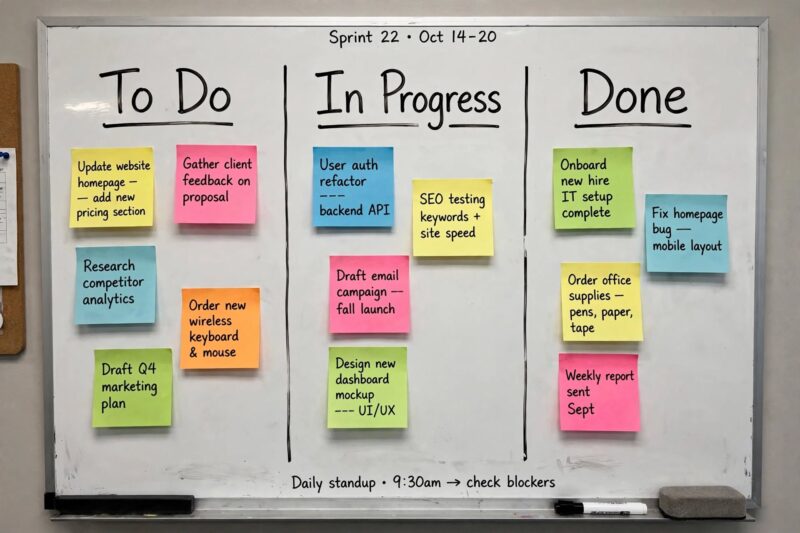
1. Kanban Column Layout
Draw three columns labeled To Do, In Progress, and Done. Write each task on a sticky note and move it across the columns as work moves forward. This layout gives a fast visual read on how much work is actually finished versus stuck, which plain lists never show as clearly.
2. Four-Zone Grid
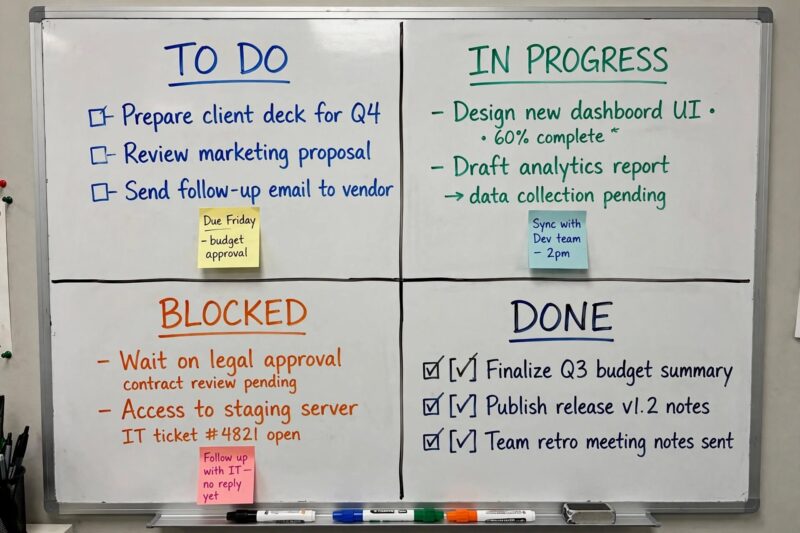
Split the board into four equal boxes with one line down the middle and one across. Label each box for a different focus, such as urgent tasks, ongoing projects, ideas, and reminders. This keeps everything visible at once without any single category taking over the whole board.
3. Color-Coded Zones With Washi Tape
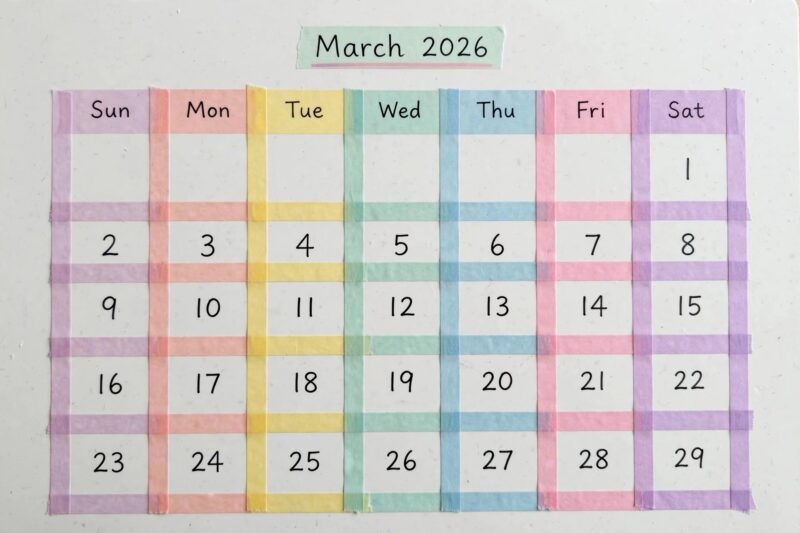
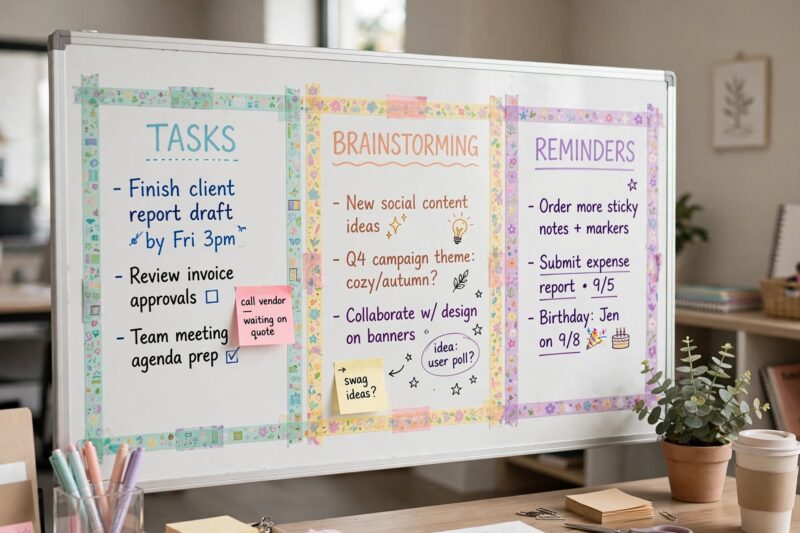
Use washi tape or thin magnetic strips to separate sections instead of marker lines, then assign one color per zone. One area handles daily tasks, another brainstorming, another quotes or reminders. Tape peels off clean, so the layout can change without leaving marks behind.
4. Weekly Planner Grid
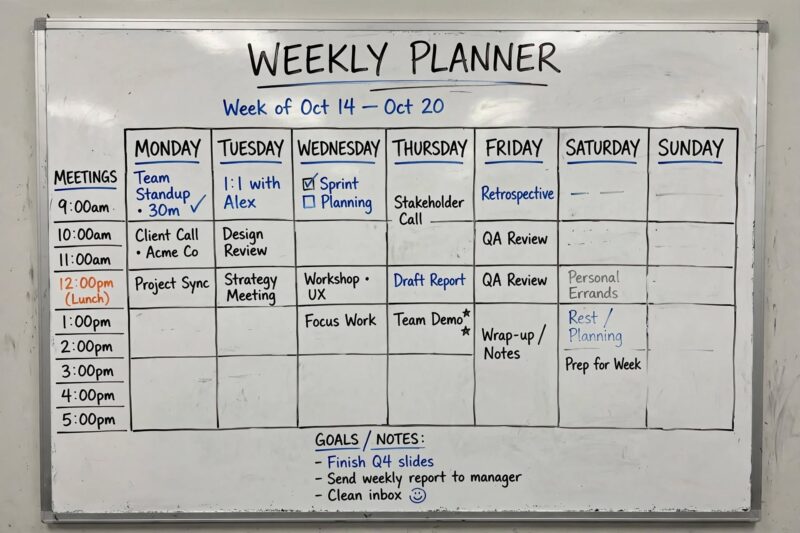
Set up a layout that mirrors a weekly planner, with a column for each day from Monday to Sunday. Add rows underneath for meetings, deadlines, and personal notes. This gives teams a shared view of the week ahead and works especially well mounted near a shared workspace.
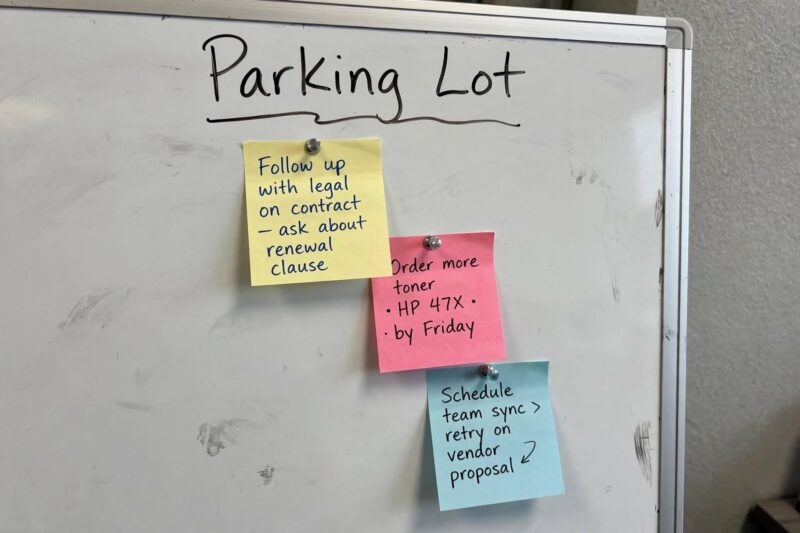
5. Idea Parking Lot Corner
Reserve one small corner of the board for off-topic thoughts that come up during meetings but do not fit the current discussion. Label it Parking Lot. This keeps the main sections focused while still capturing ideas worth revisiting later instead of losing them mid-conversation.
6. Central Mind Map Zone
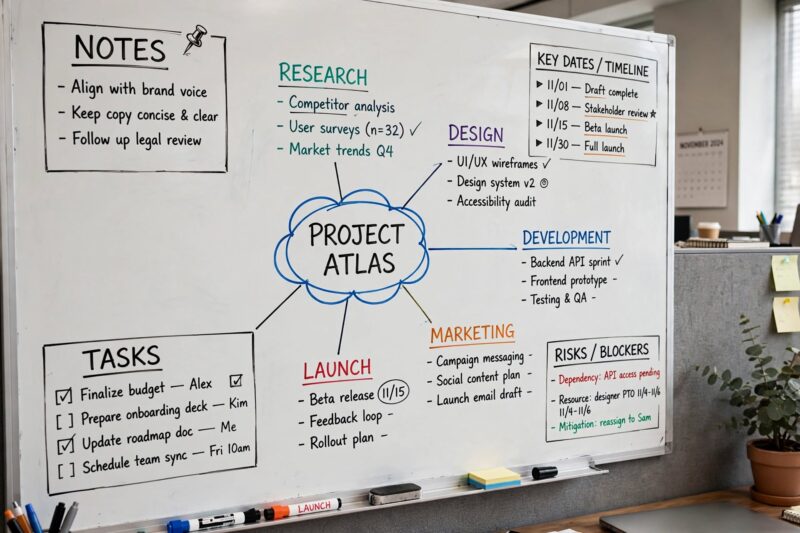
Leave the middle of the board completely open for freeform mind maps, then border it with smaller structured sections for tasks or notes. A central bubble holds the main topic, with branching lines out to related ideas. This layout suits brainstorming sessions better than a rigid grid.
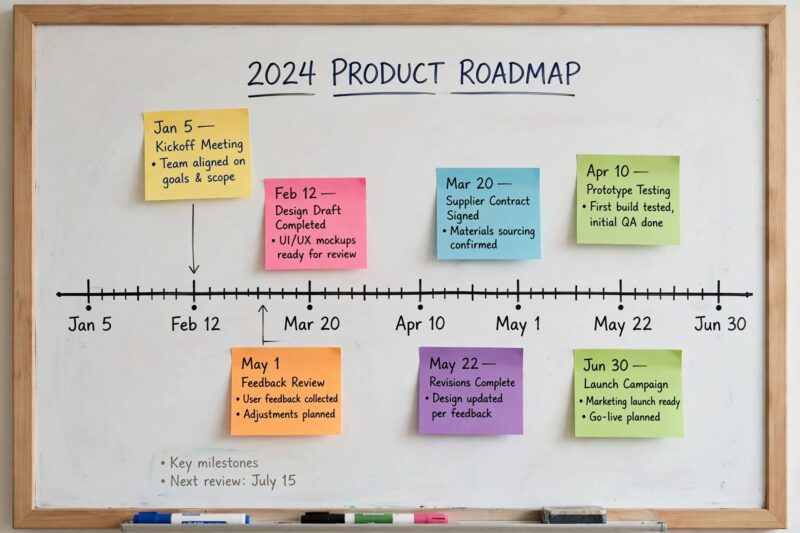
7. Project Timeline Strip
Draw a single horizontal line across the board with dates or milestones marked along it, then attach sticky notes above and below for tasks tied to each date. This works well for tracking one big project from start to finish without switching to a separate planning tool.
8. Magnetic Accessory Rail
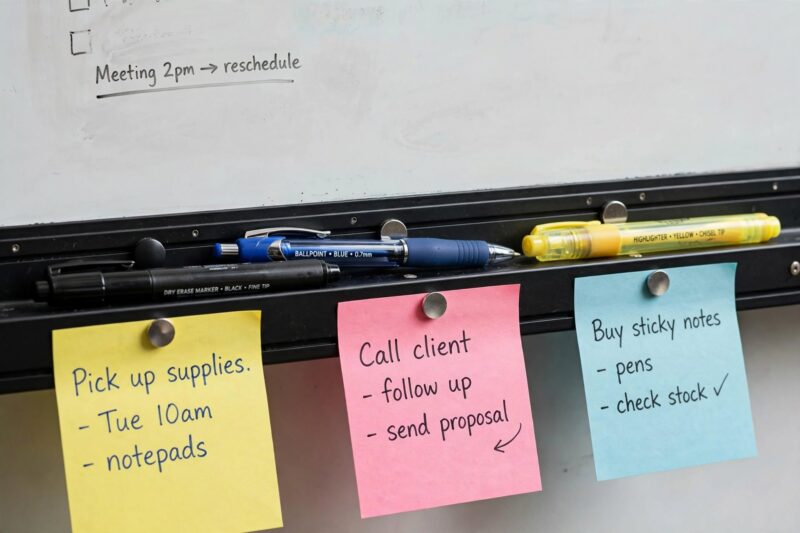
Attach a strip of magnetic baskets and clips along the bottom of the board for pens, sticky notes, and loose papers instead of letting them pile on the surface. This keeps the writing area clear while still keeping supplies within reach right where you need them.
9. Swim Lane Rows For Multiple Projects
Draw horizontal rows, one per project or team member, running across a Kanban-style column layout. Each row tracks its own tasks across the same To Do, In Progress, and Done columns. This lets one board hold several projects at once without mixing up whose task is whose.
10. Rotating Quote And Focus Corner
Set aside a small section for a rotating quote, goal, or theme of the week. Update it every Monday. This does not add any function to the board’s task tracking, but it gives the space a personal touch and often becomes the part people notice first.
11. Two-Board Split Setup
Instead of cramming every category onto one board, use two smaller boards side by side, one for structured task tracking and one left blank for freeform notes and sketches. This avoids the common problem of one layout style fighting another on the same surface.
12. Header Banner With Section Icons
Reserve a thin strip across the top for a title and small icons marking each section below, a checkmark for tasks, a lightbulb for ideas, a clock for deadlines. This helps new users read the board’s layout at a glance without needing anyone to explain it to them.
How Often Each Layout Style Gets Used (Relative Interest)
Kanban Columns
Zoned Sections
Weekly Grid
Mind Map Zone
Timeline Strip
What Mistakes Should You Avoid When Laying Out A Whiteboard?
The biggest mistake is adding too many sections at once. A board split into seven or eight tiny zones ends up looking cluttered and hard to read, even if each individual zone is useful on its own. Start with two or three sections and only add more once you actually run out of room.
Another common mistake is drawing permanent lines before testing the layout. Sketch your zones with tape or light pencil marks first and live with the setup for a week before committing to marker lines that are harder to change. What looks good on paper does not always work in daily use.
Ignoring maintenance is the third mistake. A layout only stays useful if someone updates it regularly. Assign one person to own the board’s upkeep, or set a recurring reminder, so sections do not fill up with outdated sticky notes that nobody bothers to clear.
FAQ
What is the easiest whiteboard layout for beginners?
A simple three-column Kanban layout with To Do, In Progress, and Done is the easiest starting point. It needs only two lines and works for almost any task-based use.
How many sections should a whiteboard layout have?
Most boards work best with two to four sections. More than that usually makes the board harder to read and maintain, especially on smaller boards.
Should a whiteboard layout be permanent or flexible?
Use tape or magnetic strips for a flexible layout you expect to change often, and marker only for sections that will stay the same for months, like a fixed weekly grid.
Can one whiteboard layout work for both personal and team use?
Yes, a four-zone grid or a Kanban column layout adapts well to both. Just adjust the labels to match whether the board is tracking personal tasks or team projects.
What tools help divide a whiteboard into sections?
Washi tape, thin magnetic strips, and a ruler with a fine-tip marker are the most common tools. Magnetic strips are the easiest to move if you plan to change the layout often.
How big should a whiteboard be for a team layout?
A team board should be at least 48 inches wide if it needs to support four or more sections, since smaller boards make Kanban columns and swim lanes feel cramped.
Should a whiteboard layout match a digital tool used by remote staff?
Matching the section names and colors between a physical board and a digital whiteboard tool makes it easier for hybrid teams to follow updates in either format without confusion.
References
- AFFiNE, “10 Best Whiteboard Layout Ideas to Boost Your Productivity in 2025” (2025)
- Homestyler, “10 Creative Office Whiteboard Decoration Ideas” (2025)
- Visual Facilitators, “Effective Ideas For Whiteboards In The Office” (2024)
- FluidStance, “Whiteboard Productivity Layout: Organize Your Ideas Better” (2026)
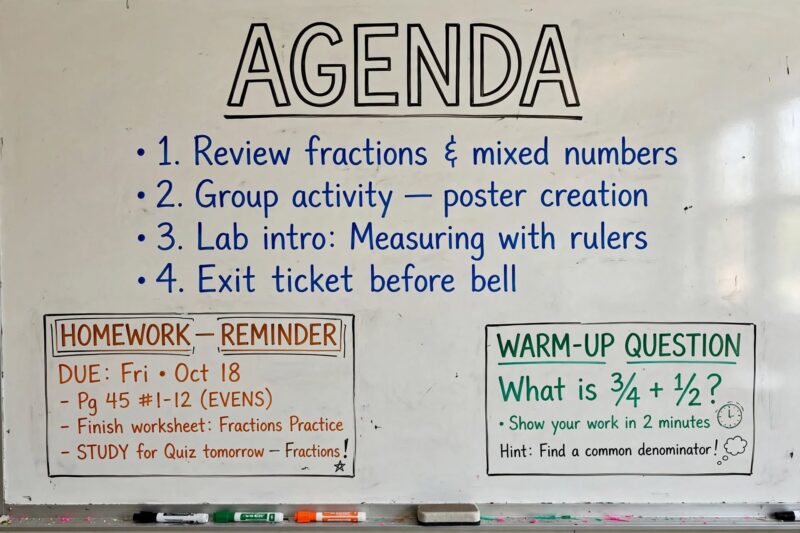
How Do You Adapt A Whiteboard Layout For A Classroom?
Classroom boards need bigger, simpler zones than office boards since students are reading from farther away. A three-part layout works well here too, one section for the day’s agenda, one for homework reminders, and one for a warm-up question or bell ringer activity that changes daily.
Keep classroom text large and block-printed rather than cursive, and use consistent colors for the same category every day, blue for homework, red for tests, so students learn the pattern quickly without needing to read every word. A small icon key in the corner helps younger students especially.
How Do You Adapt A Whiteboard Layout For Remote Or Hybrid Teams?
A physical board still works for hybrid teams if someone photographs it after each update and shares the image in a group chat or shared drive. Keep the layout simple enough to photograph clearly in one shot, avoiding tiny handwriting that gets lost in a photo taken from across the room.
Some teams pair a physical board with a matching digital whiteboard tool, mirroring the same section names and colors in both places. This way remote team members can add sticky notes to the digital version while in-office staff use the physical board, and both stay in sync during weekly review.

A Teacher with 5 years of experience. Our Expertise, is reliable to meet your full Academic development needs . Worked on many crafts and construction projects offering services from design to development to deployment over the years. You will find many of my works in my business portfolio on request.